โ† Back to Articles
Guide
September 11, 2026

How to Track Trading 212, IBKR, and XTB in One Combined Portfolio

If you hold accounts at more than one broker, none of them can tell you your real total net worth or return. Here's how to import more than one into Oitava and see one combined number.

๐Ÿงฉ

The problem with three separate apps

Trading 212 shows you Trading 212. IBKR shows you IBKR. XTB shows you XTB. None of them know the other two exist, so none of them can answer a simple question: what is my total net worth right now, across everything I own, and what has my actual return been on all of it combined?

This is common. People open a Trading 212 account for commission-free trades, later add an IBKR account for access to markets Trading 212 doesn't cover, and pick up an XTB account somewhere along the way for a specific promotion or instrument. Three logins, three separate numbers, and no honest total.

This guide walks through importing all three into Oitava as separate portfolios, then using the automatic combined view to see total net worth, gains, dividends, and performance in one place. If you only use a single broker, none of this applies to you, skip straight to importing.
1๏ธโƒฃ

Step 1: Create a portfolio for each broker

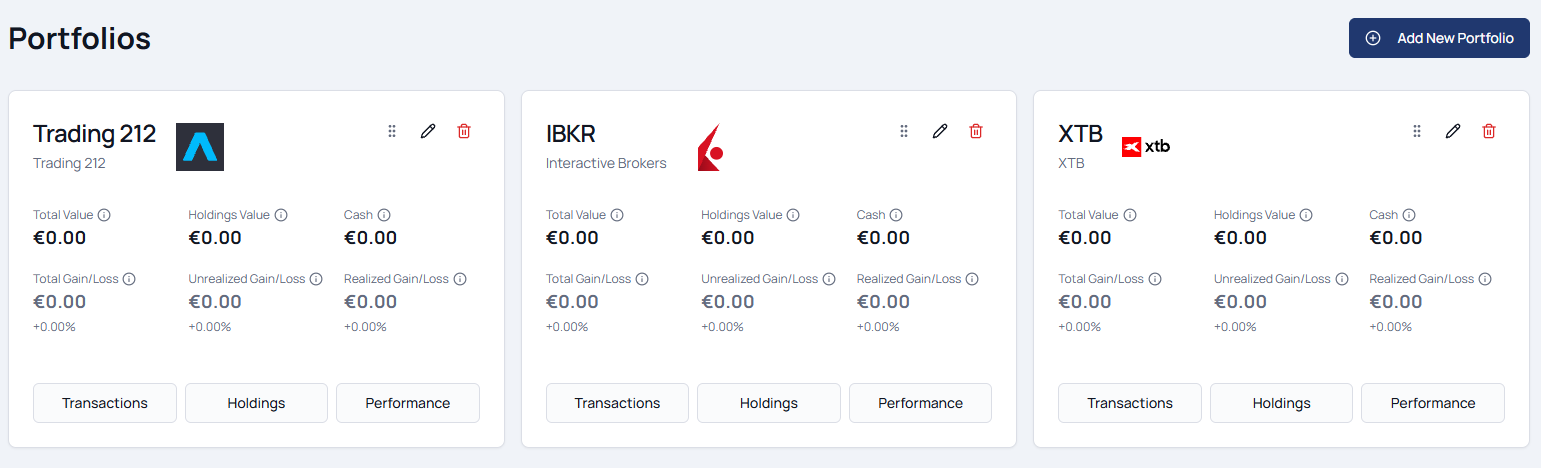
In Oitava, a portfolio maps to one account, not one strategy or one goal. If you hold accounts at three brokers, you create three portfolios, one per broker, each tagged with that broker's type so Oitava knows which CSV format to expect when you import.

Go to Portfolios in the left sidebar, click "Add New Portfolio," then choose "Brokerage / Stocks / Crypto" (not "Custom," that's for manually-tracked assets like PPRs). Give it a name (e.g. "Trading 212"), pick the matching brokerage from the list, and choose the portfolio's base currency. Repeat for each of the three brokers. You don't need to add any holdings manually here, the import in the next step does that.

The Portfolios page showing three created portfolios, one per broker
Once all three exist, you're ready to import.
2๏ธโƒฃ

Step 2: Export and import each broker's transaction history

Each broker exports its transaction history differently, and Oitava's import parses each format on its own, so the steps below are summarized per broker, full step-by-step guides with screenshots exist for each. Import each file into the matching portfolio you created in Step 1.

After each import, check the results summary Oitava shows you before moving on: how many transactions were detected and imported, and whether anything needs attention (an unrecognised ticker, an unsupported currency, or a row that needs clarification). Fixing these at import time is much faster than tracking down a wrong number later. If you find any problem, contact us and we'll help you solve it.

๐Ÿ“ค

Trading 212

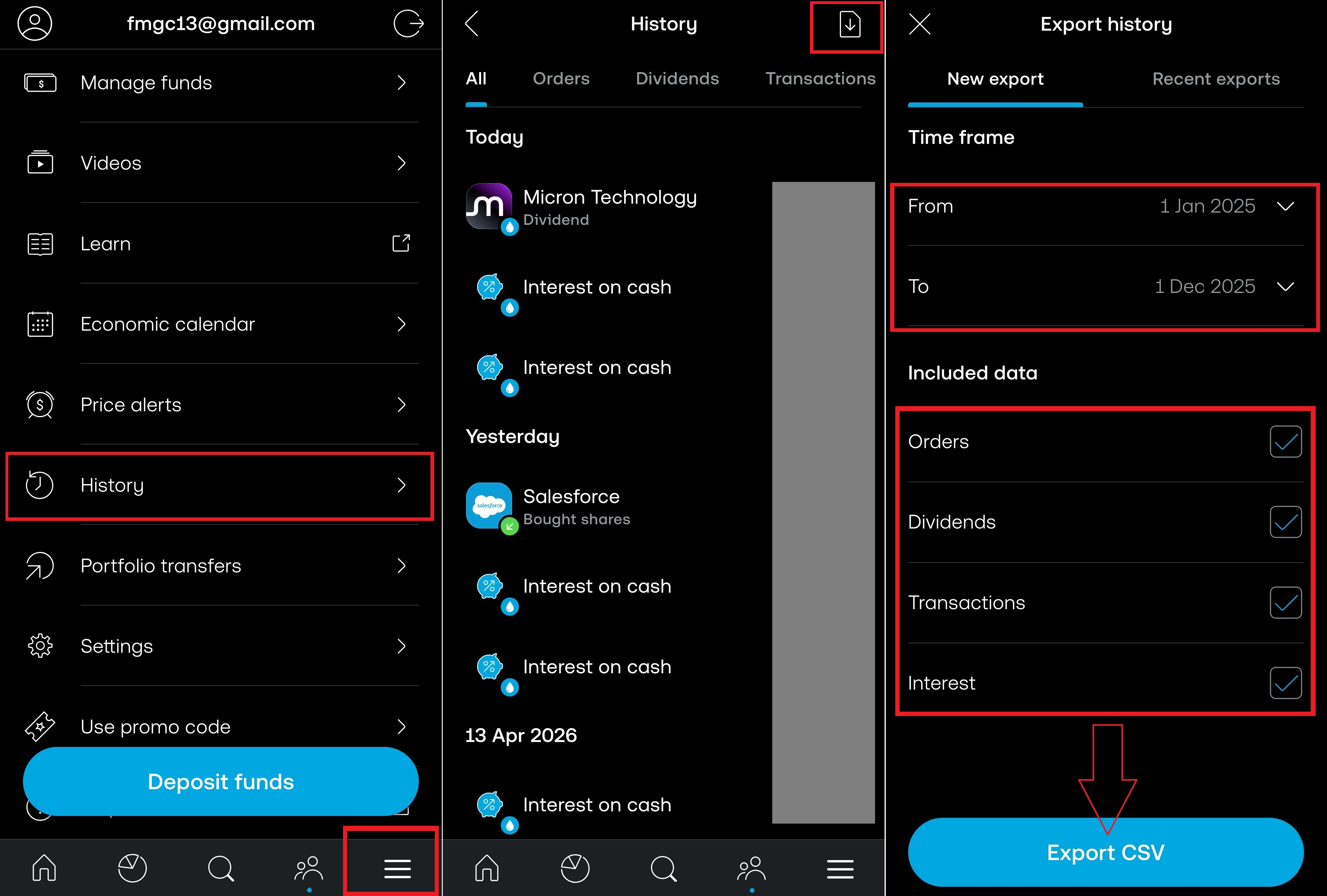
Export from the Trading 212 mobile app: tap the icon in the bottom-right corner, select History, then tap the export icon and pick your date range. Trading 212 caps each export at one year, so if your history spans multiple years, export one file per year, you can select all of them at once in Oitava's import dialog. Before uploading, select the Trading 212 portfolio in the portfolio selector at the top of the page, then open Import from the Transactions page, Oitava detects the column format automatically.

Exporting a transaction history CSV from the Trading 212 app
Export your history from the Trading 212 app.
๐Ÿ“ค

IBKR

Log in to the IBKR Client Portal and go to Performance & Reports โ†’ Statements. Generate an Activity statement covering your full history in CSV format, then download it. Before uploading, select the IBKR portfolio in the portfolio selector at the top of the page, then open Import from the Transactions page. IBKR's export includes transaction types most brokers don't, like corporate actions and currency conversions, Oitava's importer handles these without extra steps.

๐Ÿ“ค

XTB

Export your Cash operations report as CSV from the XTB app. XTB gives each currency you hold (EUR, USD, etc.) its own separate account, so when generating the report, tick every account listed, not just the default one, or transactions in the others will be missing. Before uploading, select the XTB portfolio in the portfolio selector at the top of the page, then open Import from the Transactions page, all your XTB accounts import into that single portfolio.

๐Ÿ“Š

Step 3: Confirm each portfolio individually

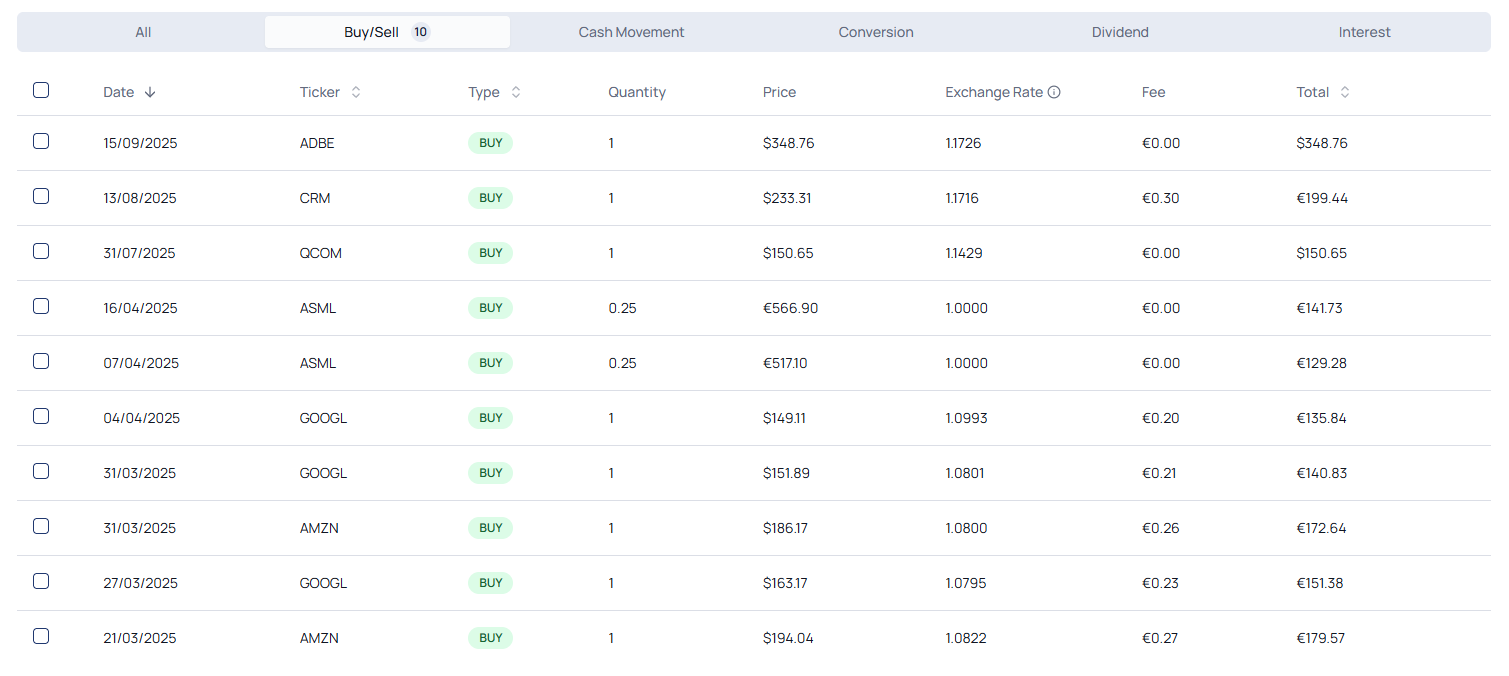
Once an import finishes, that portfolio's holdings, cost basis, and gains are calculated immediately from the imported transactions. Before relying on the combined view, switch to each of the three portfolios individually and confirm everything landed correctly: check Transactions for the full imported history, and check Holdings for the right positions and quantities, then compare both against what that broker's own app shows you.

Transactions view for a single imported portfolio
Check Transactions against your broker's own history.
๐ŸŒ

Step 4: See everything combined in "All Portfolios"

Once you have more than one portfolio, Oitava automatically creates an "All Portfolios" view that aggregates every account into one number: total net worth, unrealised gains, dividends received, and performance, converted into your Preferred Display Currency (set under Settings) regardless of what currency each broker holds cash or positions in.

This is the number none of the three broker apps can show you on their own, because none of them can see outside their own walls. Switch to "All Portfolios" from the portfolio selector to see it, and from there you can also browse your combined holdings across all three brokers as if they were one account.

The All Portfolios aggregate dashboard combining net worth across brokers
All Portfolios combines net worth, gains, and dividends across every broker.
๐Ÿ“ˆ

Step 5: Check your real combined performance

Net worth is only half the picture, the other half is return, and this is where combining brokers matters most. With "All Portfolios" selected, open the Performance page, split into a Personal tab and a Market tab that answer two different questions.

The holdings and performance shown in the screenshots below belong to a fictional demo portfolio, used for illustration purposes only.

๐Ÿ’ฐ

Personal tab: how hard is your money working

This tab is money-weighted, it accounts for the size and timing of every deposit across all three brokers. "The Compound Gap" chart shows your combined portfolio value against your net invested capital over time, and a card compares your combined Money-Weighted Return (MWR) since inception against the S&P 500, NASDAQ 100, and MSCI World.

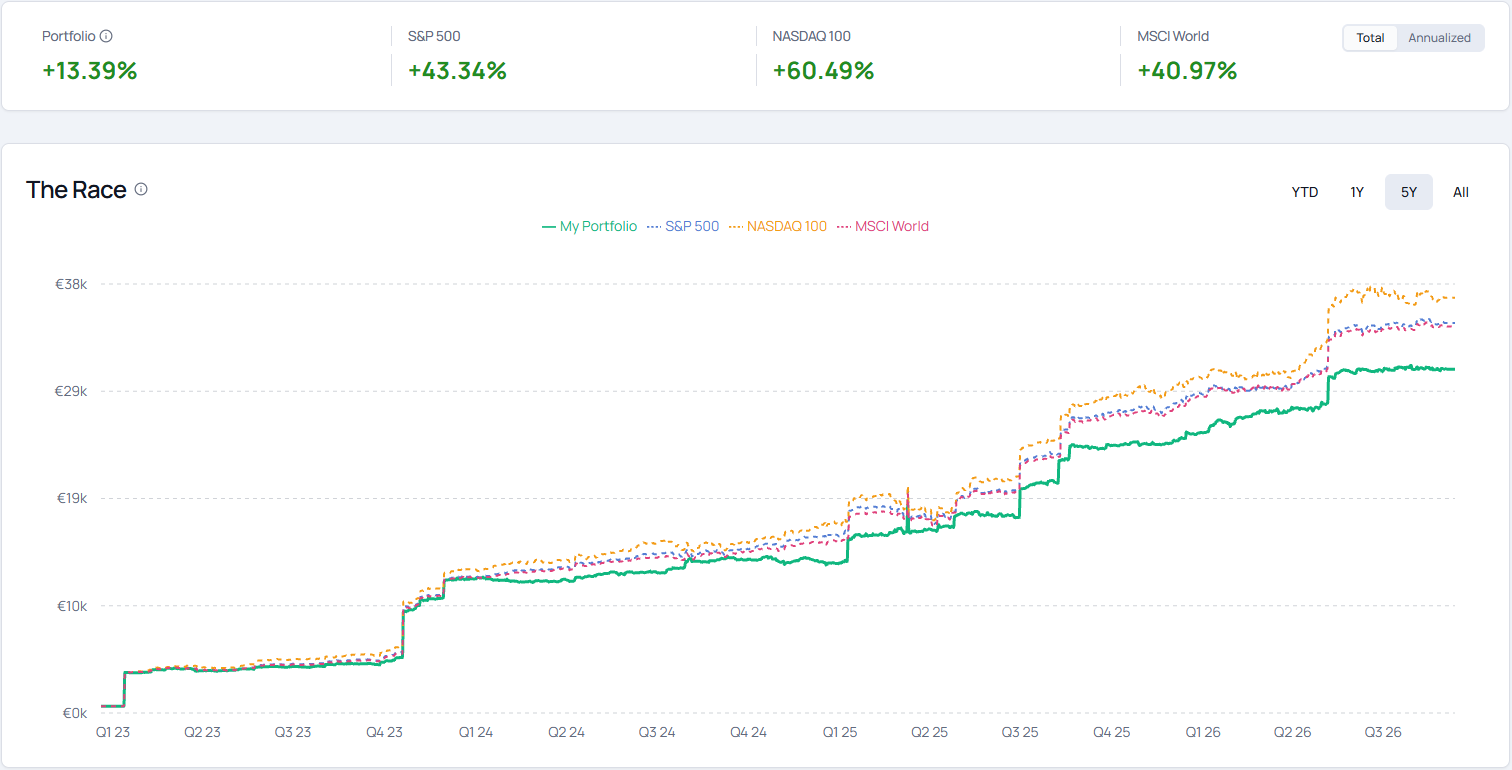
"The Race" chart plots what your wealth would have grown to if you had deposited the exact same amounts, on the exact same days, into an index instead. With "All Portfolios" selected, this runs on your combined deposits across Trading 212, IBKR, and XTB, so it answers a question no single broker can: across everything you actually put in, whichever account it went into, did your overall investing pay off compared to just buying the index?

The Race chart comparing combined portfolio value to a benchmark shadow portfolio
The Race: your combined money vs. the same deposits in an index.
๐ŸŽฏ

Market tab: are you actually a good stock picker

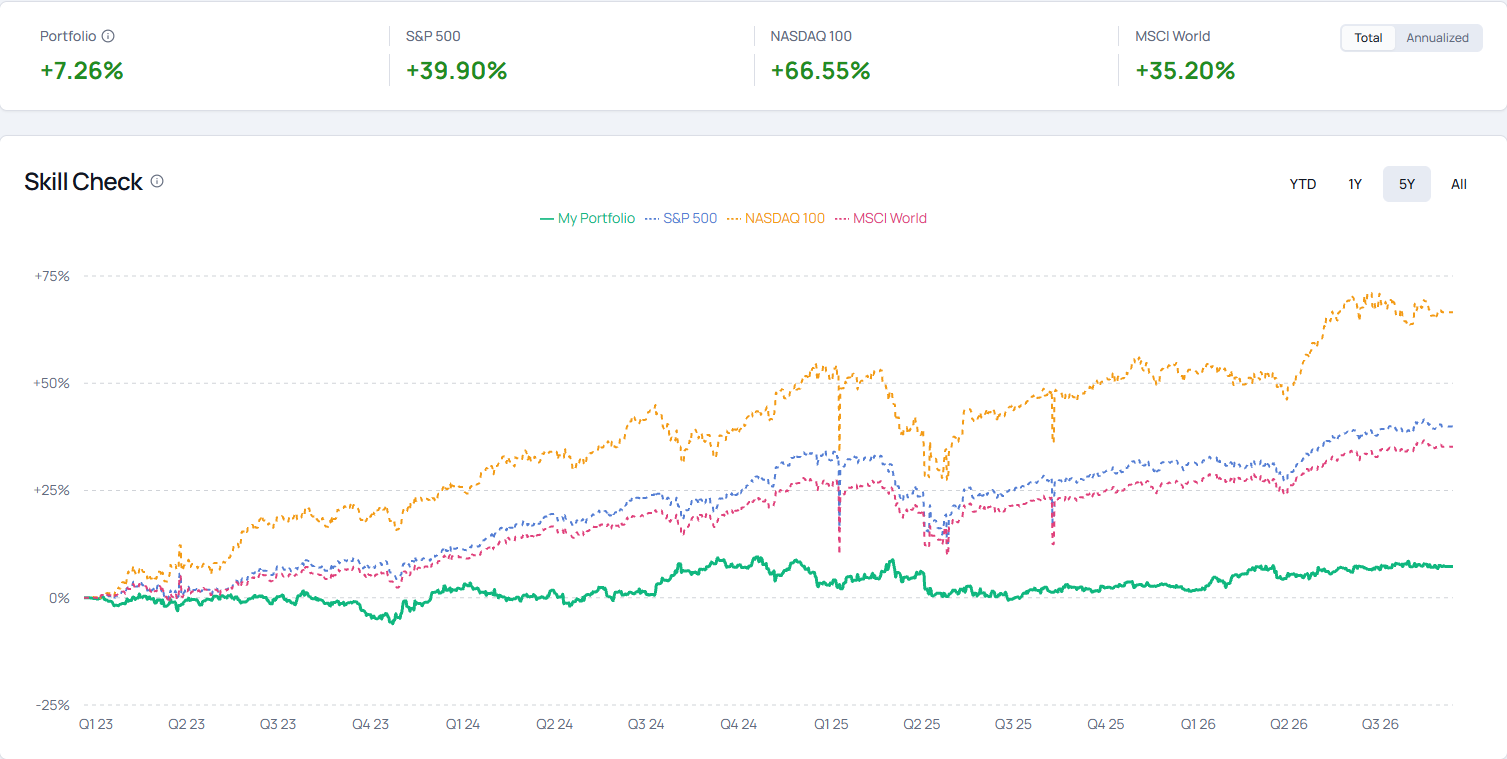
This tab strips out deposit timing entirely to isolate the quality of your combined strategy. The "Skill Check" chart and scorecard show your combined Time-Weighted Return (TWR), the return you'd have gotten if all your money across all three brokers had been invested from day one, against the same three benchmarks.

The Annual Scorecard breaks that down year by year, so you can see whether your combined stock-picking across three brokers beat the market consistently or only in a couple of good years.

Performance Market tab: TWR scorecard and the Skill Check chart
Combined TWR, deposit timing removed, against three benchmarks.
๐ŸŽ›๏ธ

Bonus: excluding a portfolio from the aggregate

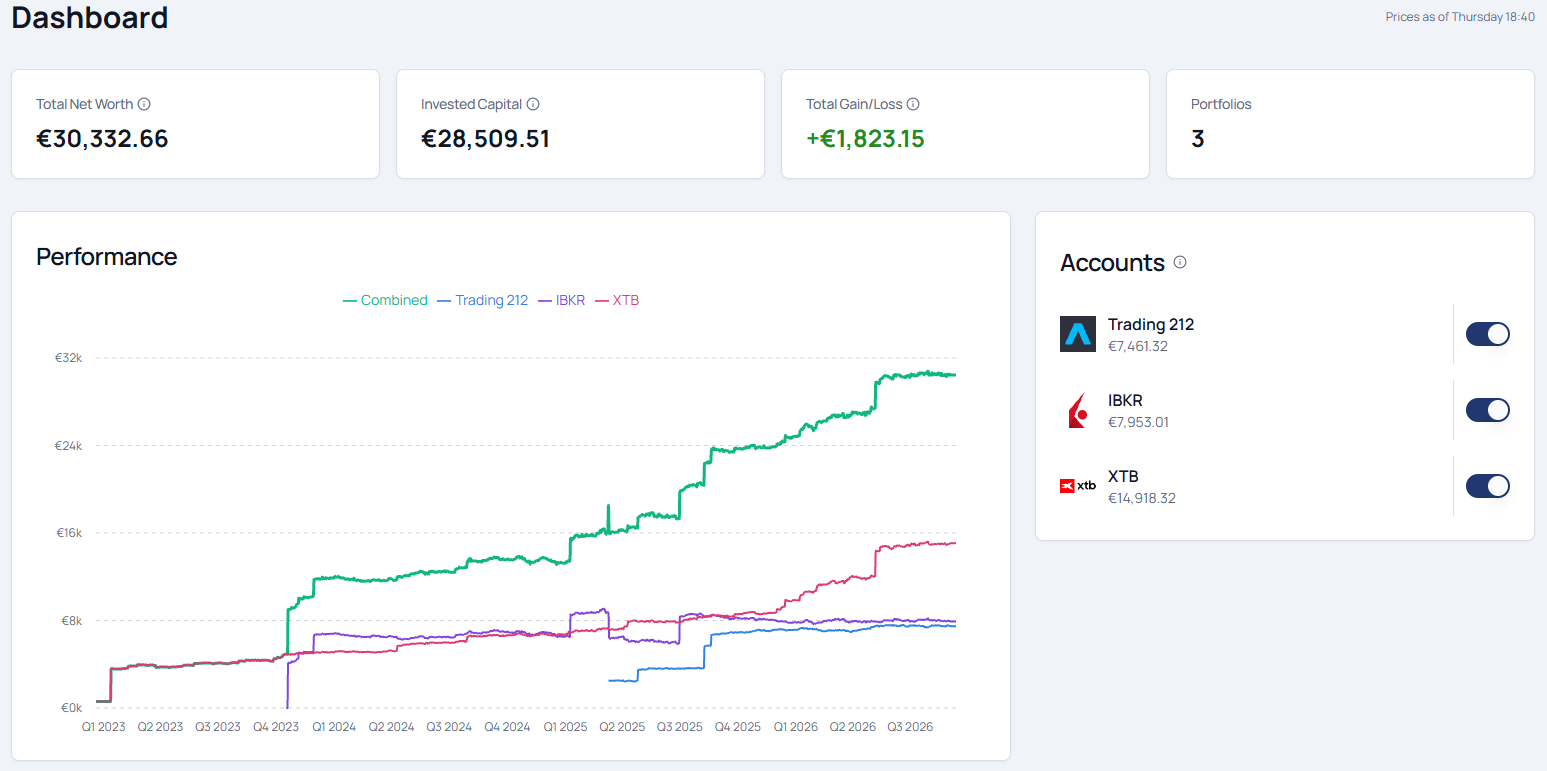
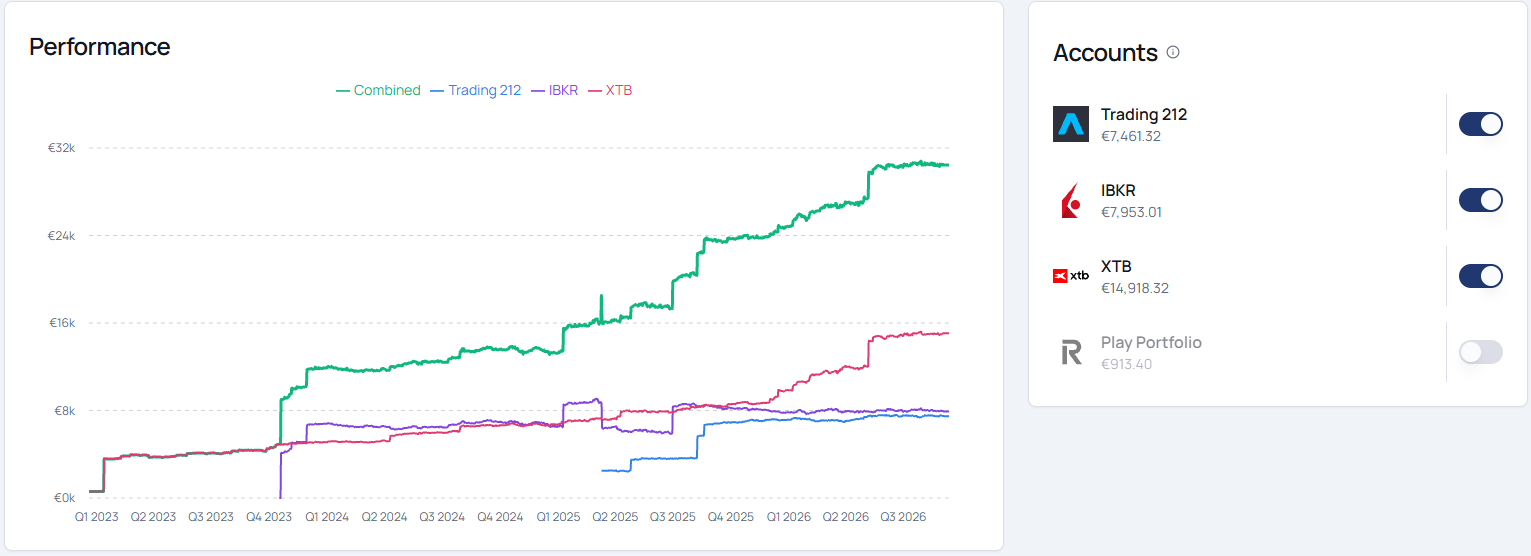
Sometimes you don't want every portfolio counted. A test portfolio you set up while exploring the platform, or an account you're deliberately tracking separately, can be excluded from "All Portfolios" without deleting it. With "All Portfolios" selected, go to the Dashboard: the Accounts card there shows a toggle next to each portfolio. Switch off the one you want excluded and click Save, its own numbers stay intact but stop feeding into the combined total.

The Accounts card on the Dashboard, showing a per-portfolio toggle to exclude it from the aggregate
On the Dashboard's Accounts card, toggle off a portfolio to keep it out of the combined total.
โœ…

Recap

The five steps

  • ยทCreate one portfolio per broker (Trading 212, IBKR, XTB), selecting the matching brokerage type
  • ยทExport each broker's transaction history as CSV and import it into its matching portfolio, checking the results summary for anything needing attention
  • ยทCheck each portfolio's Transactions and Holdings individually to confirm everything imported correctly
  • ยทSwitch to "All Portfolios" to see combined net worth, gains, dividends, and holdings across all accounts
  • ยทOpen the Performance page under "All Portfolios": the Personal tab for your real money-weighted return, the Market tab for whether your combined picks actually beat the market