Export your CSV
Export your transaction history from the XTB app, covering every currency account you hold.
- 1
Open your account menu
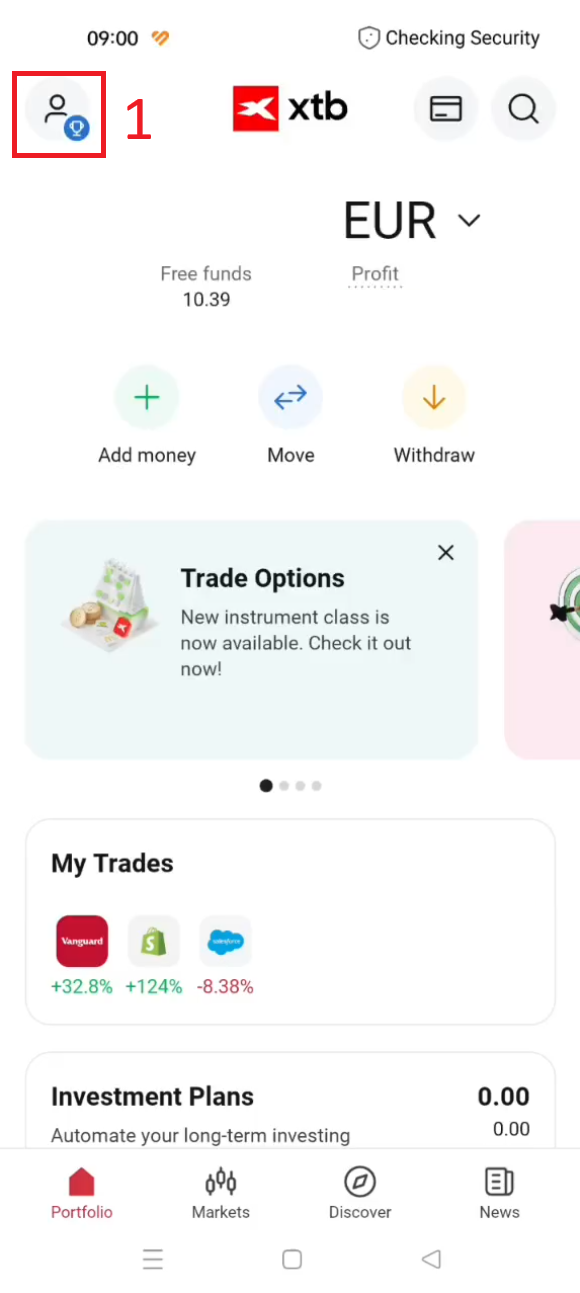
In the XTB app, tap the profile icon in the top-left corner.
- 2
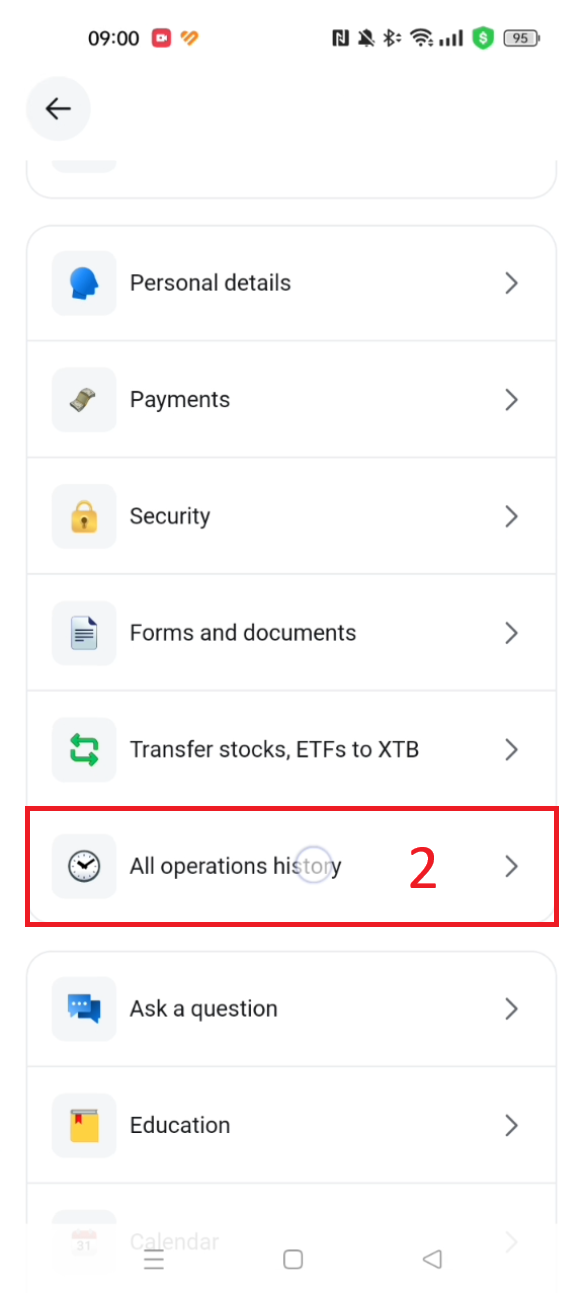
Open All operations history
Scroll down and tap All operations history.
- 3
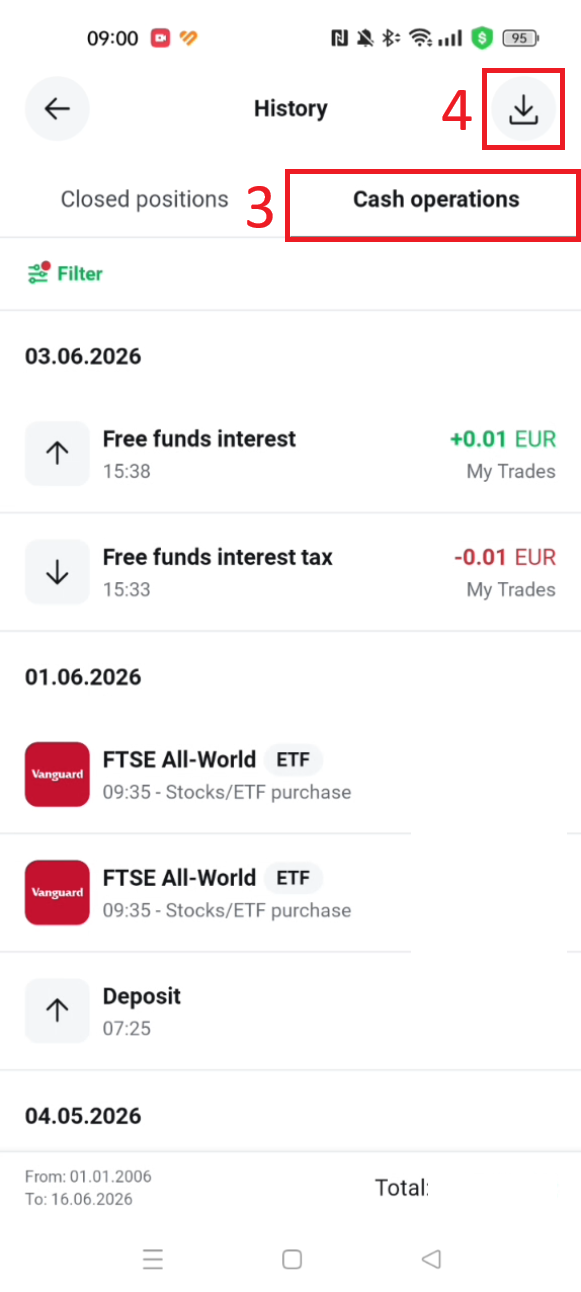
Switch to Cash operations and export
Tap the Cash operations tab, then tap the download icon in the top-right corner.
- 4
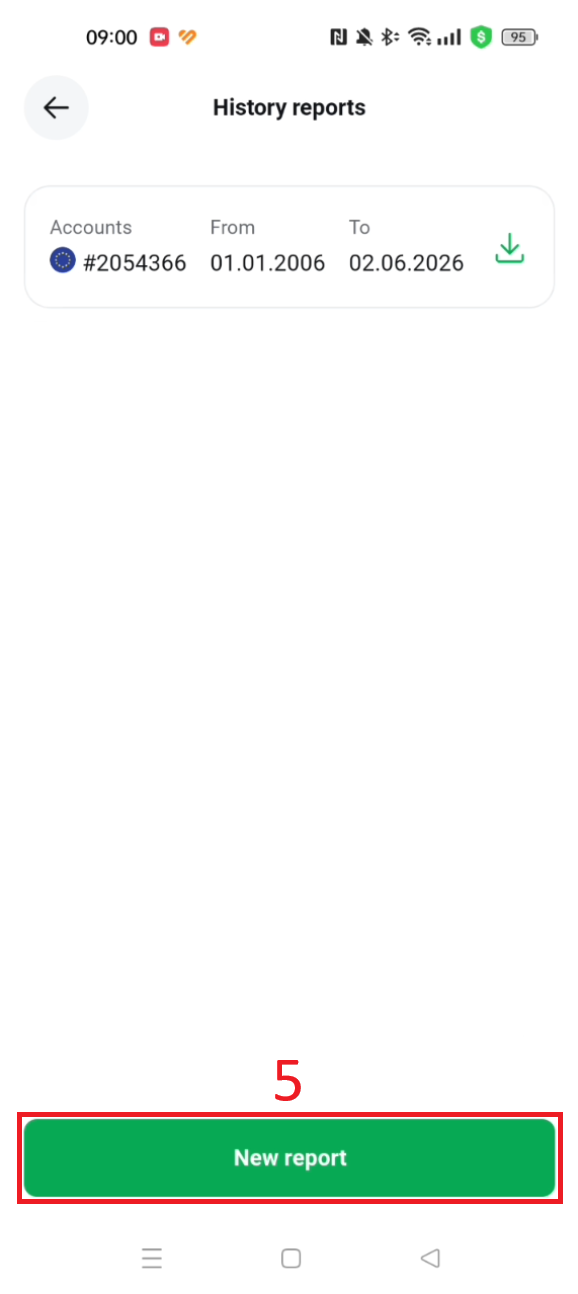
Start a new report
Tap New report.
- 5
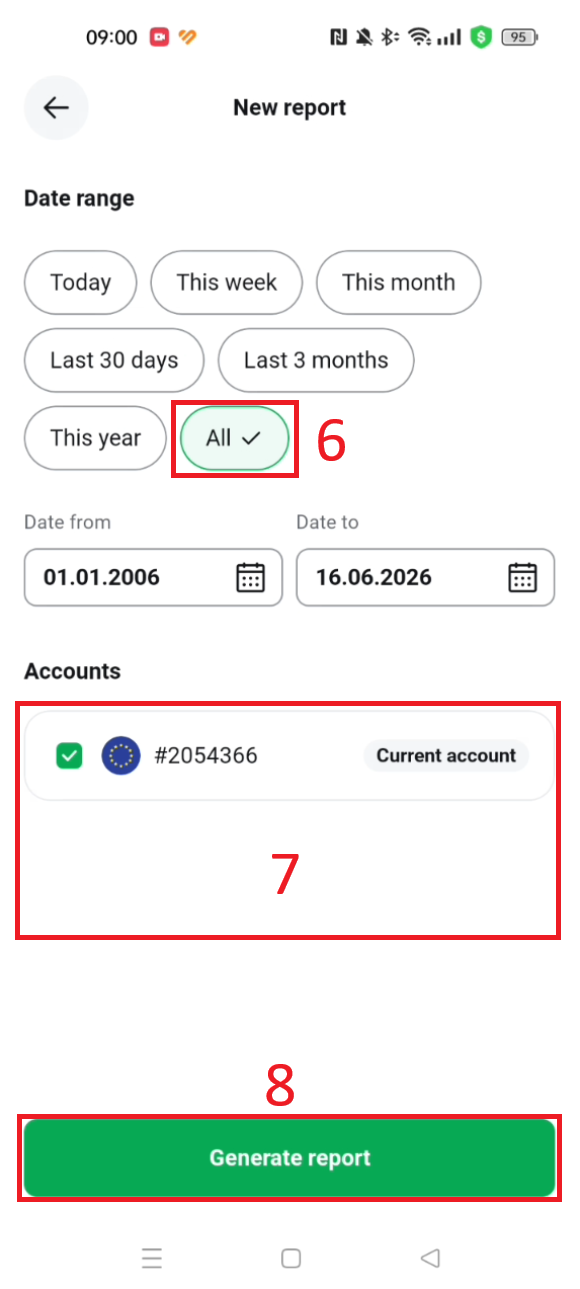
Select the full date range and every account
Set the date range to All to cover your full history. Under Accounts, tick every account listed, not just the one shown by default. XTB gives each currency (EUR, USD, etc.) its own separate account, and if you only tick one, transactions in the others won't be in the export. Then tap Generate report.
- 6
Download and import
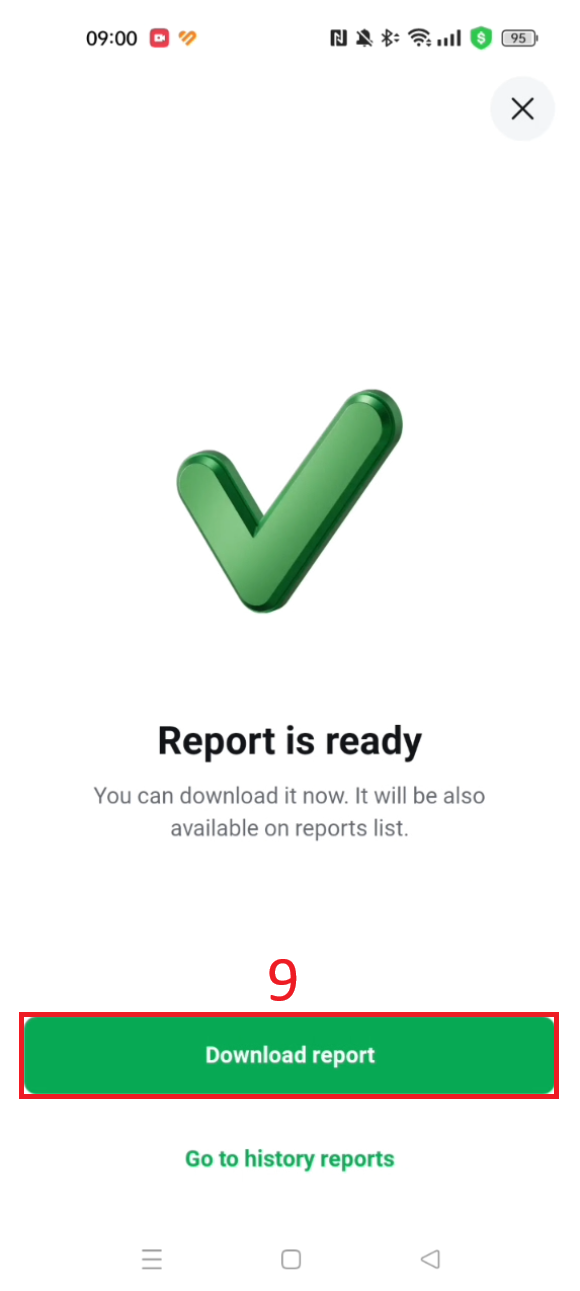
Tap Download report. If you ticked more than one account, XTB downloads a separate file for each, for example one for your EUR account and one for your USD account. Import them all into one XTB portfolio in Oitava, or each into its own portfolio. The note below explains both options.