How to Export a CSV from Trading 212

Export your full transaction history from the Trading 212 app and import it into Oitava in minutes. You can also connect via API for automatic sync.

Export your CSV

Export your full transaction history from the T212 mobile app in three taps.

  1. 1

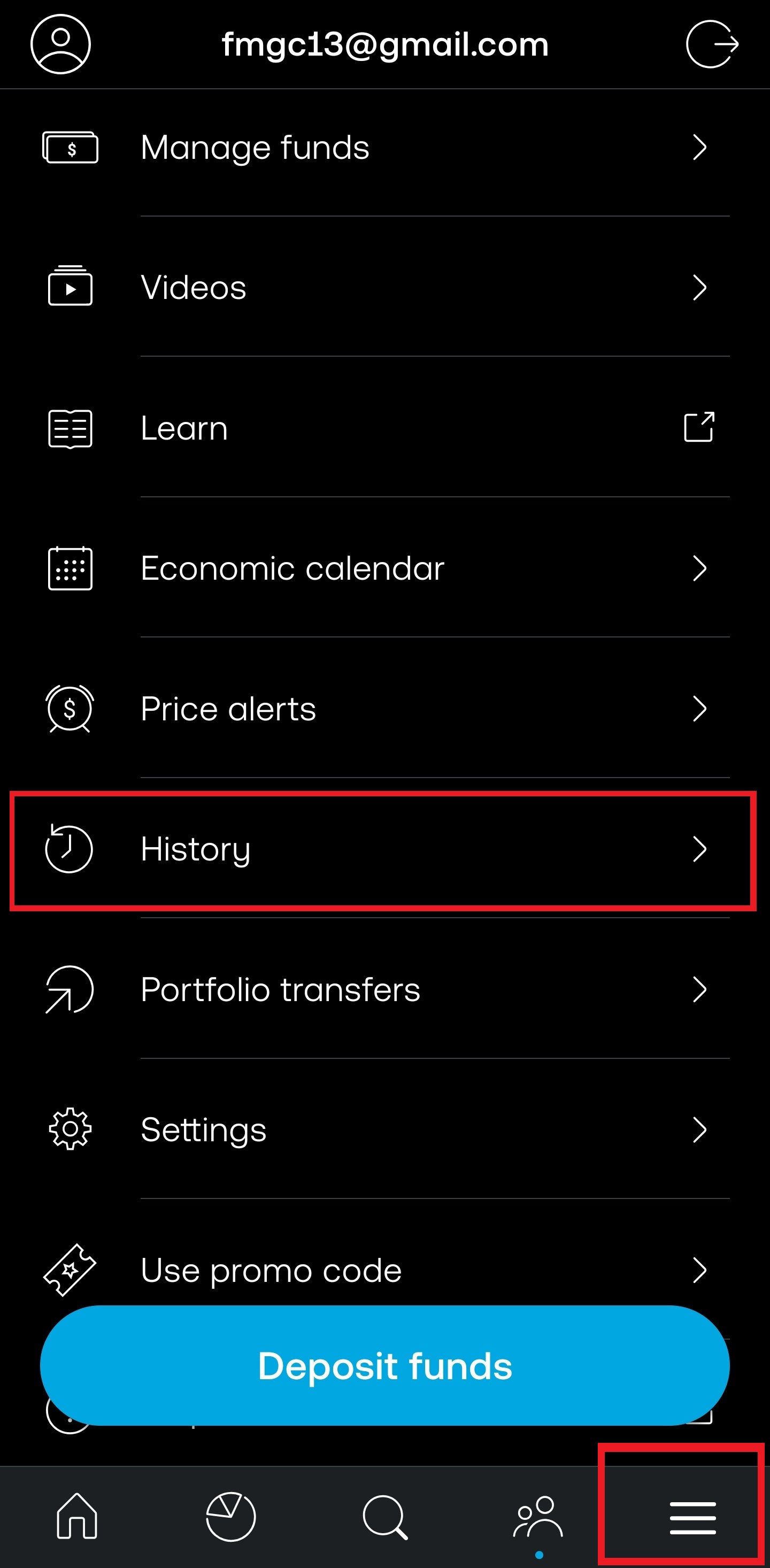
    Open History

    Open the Trading 212 app and tap the icon in the bottom-right corner, then select History.
    Step 1
  2. 2

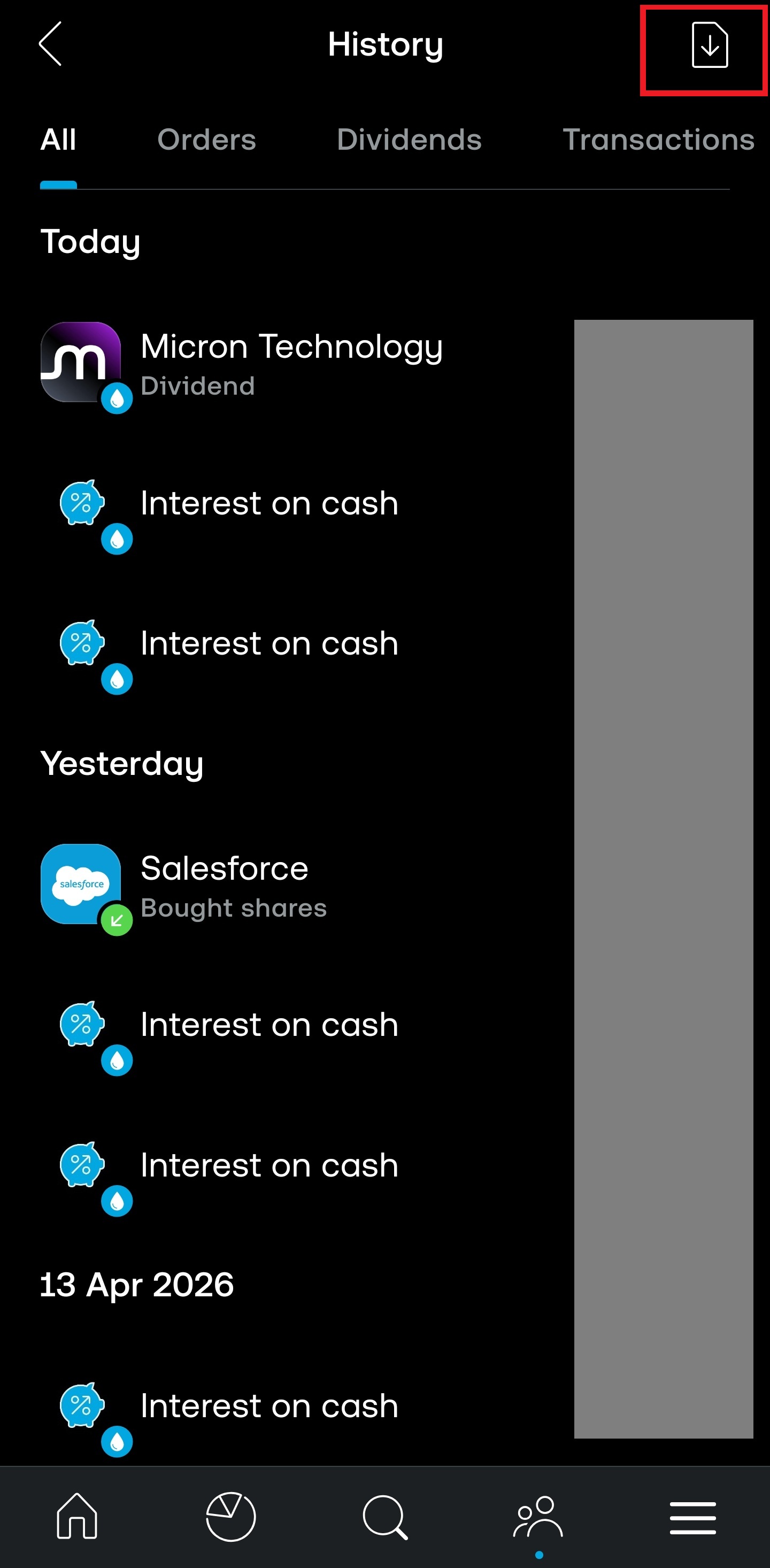
    Tap the export icon

    In the top-right corner of the History screen, tap the export icon.
    Step 2
  3. 3

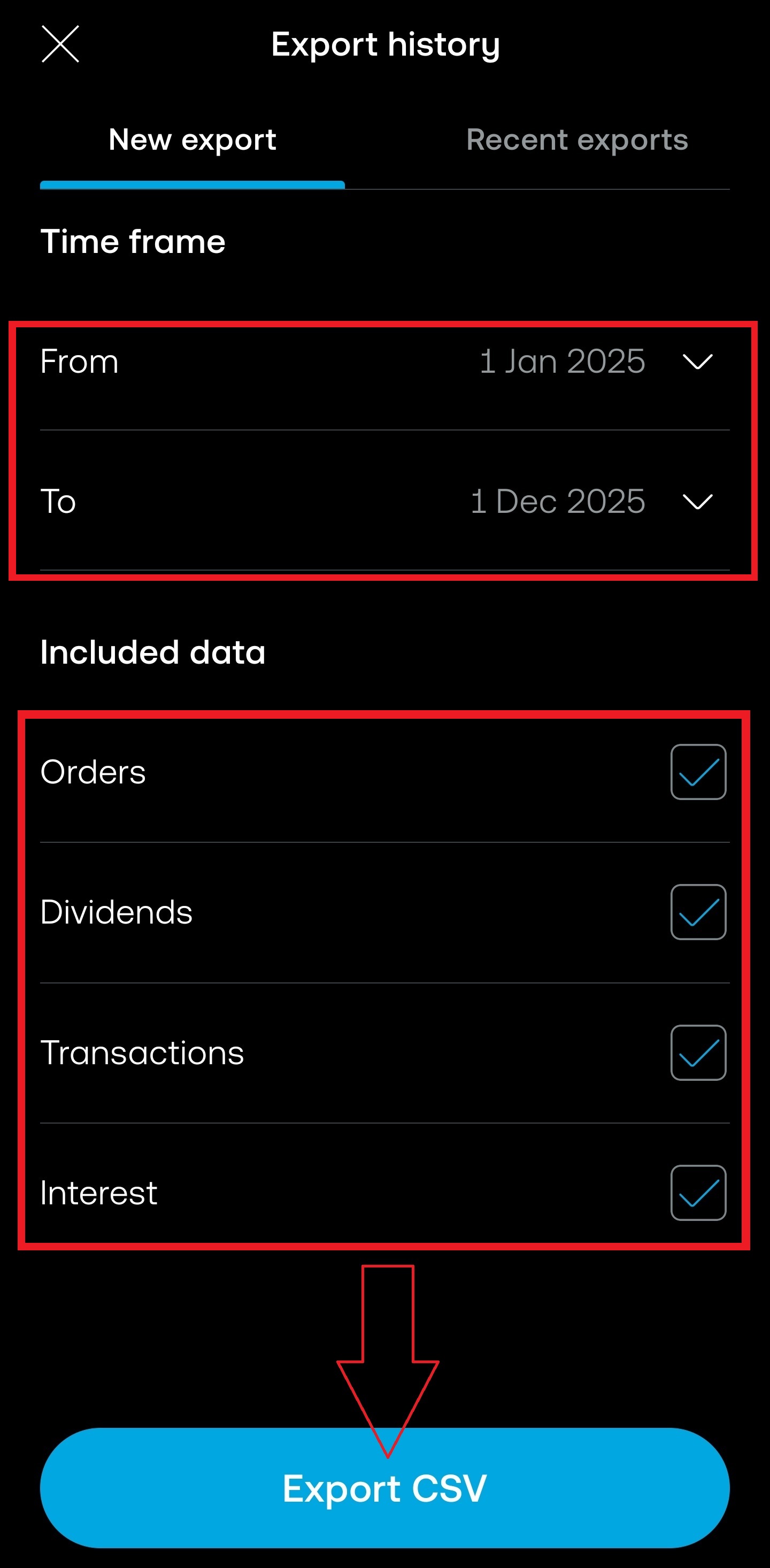
    Select your date range and export

    T212 exports up to 1 year per file. Select all the data you want exported. Tap Export — the CSV will be downloaded to your device. Repeat for each year if needed.
    Step 3
Note: T212 limits exports to 1 year per file. If your history spans multiple years, export one file per year and select them all at once in Oitava's import dialog.
API sync (optional)

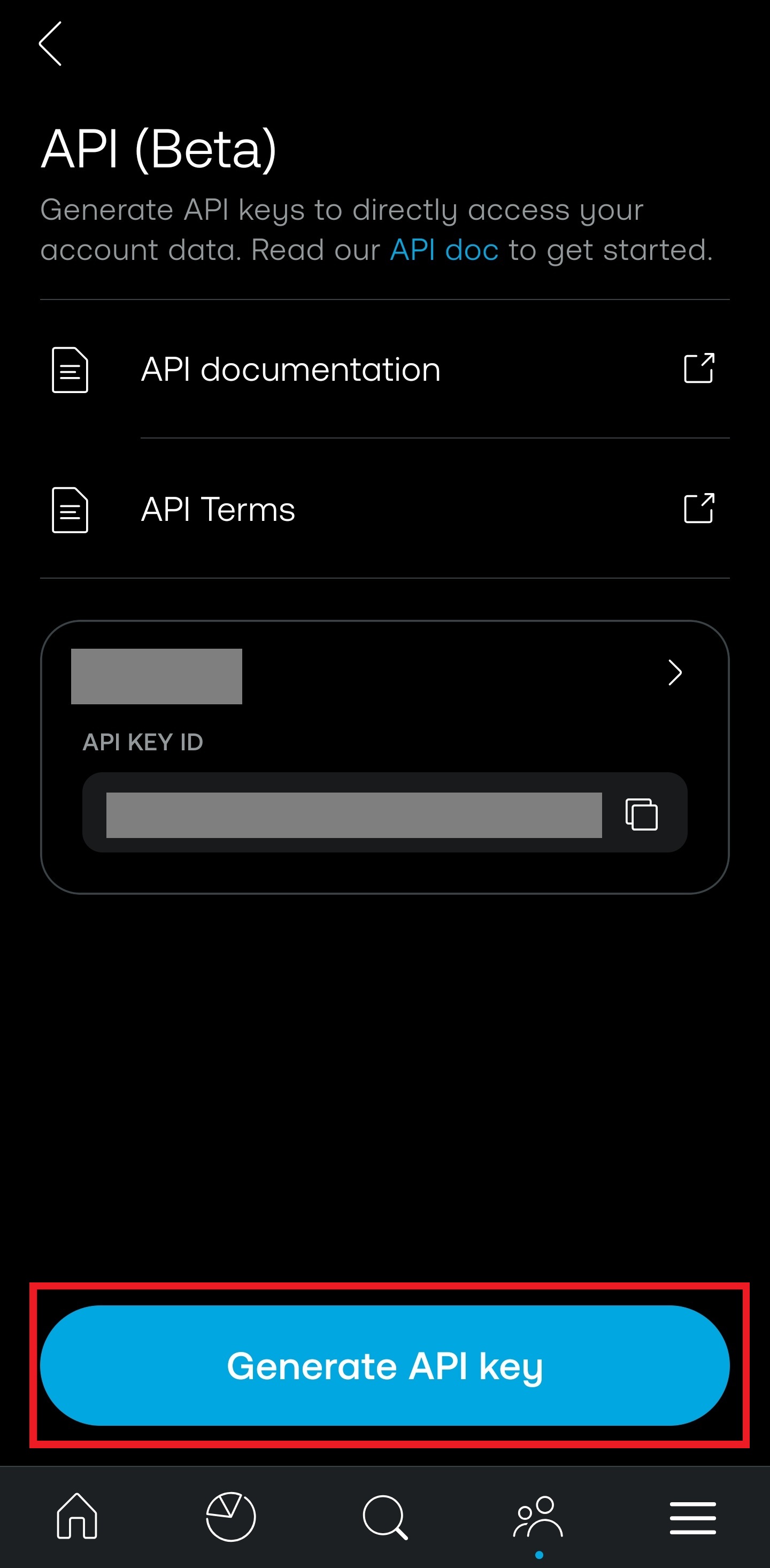
Prefer automatic sync instead of manual CSV uploads? Connect your Trading 212 account via API and Oitava will keep your portfolio up to date.

Generate a Personal Access Token from the Trading 212 app in three steps.

  1. 1

    Open your account menu

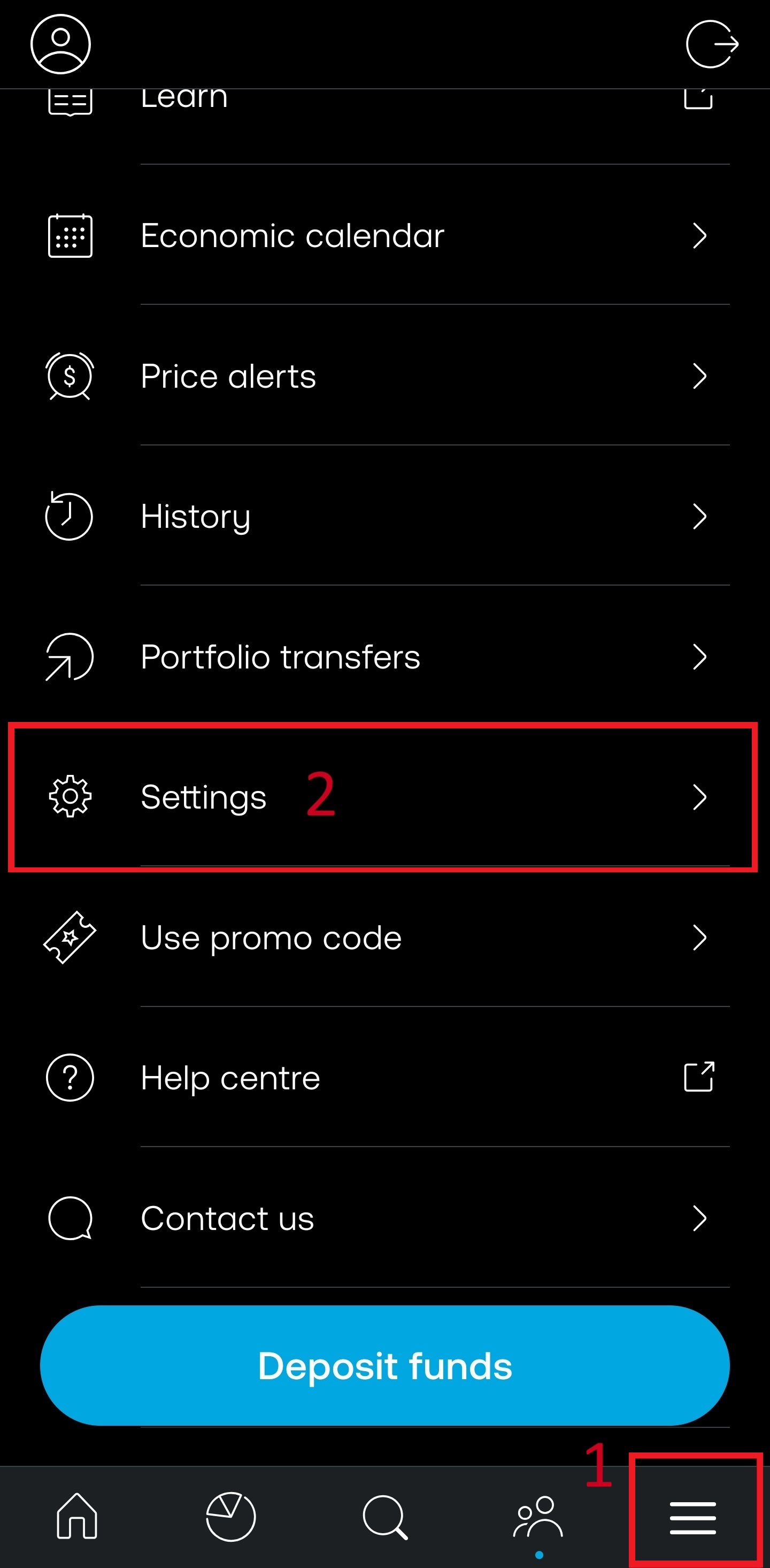
    In the Trading 212 app, tap the icon in the bottom-right corner, then tap Settings.

    Step 1
  2. 2

    Navigate to the API section

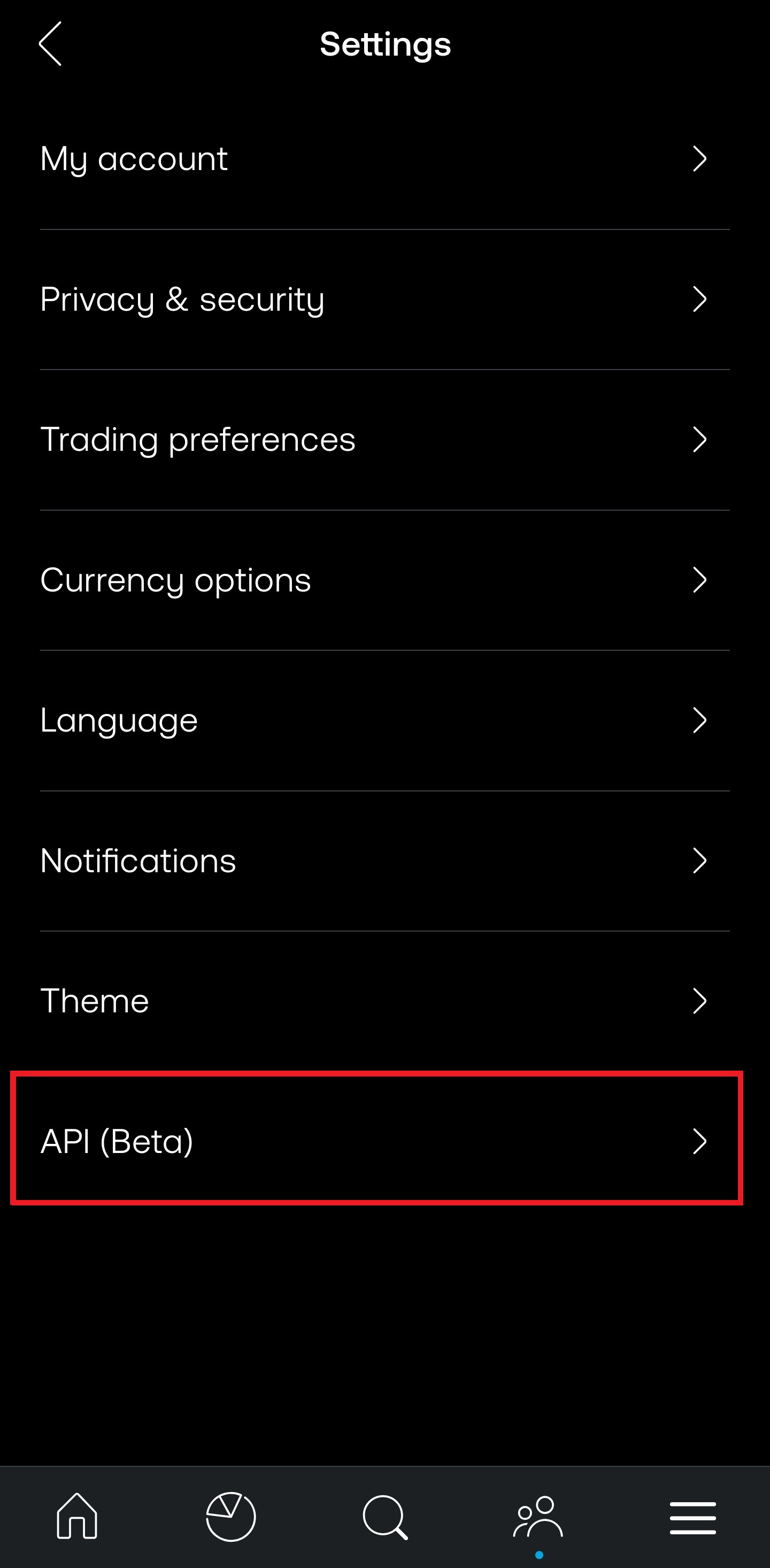
    Scroll down and tap API (Personal Access). You may need to enable it first if you haven't already.

    Step 2
  3. 3

    Generate or copy your API key

    Tap Generate Key. Copy both the API key ID and the secret key — you'll need both. Use the Live key for real-money portfolios and the Demo key for paper trading.

    Step 3

Ready to import?

Create a free account and import your Trading 212 portfolio in minutes.