Export your account statement
Export your activity from the DEGIRO web platform. Make sure to use the Account Statement, not the Transactions export.
- 1
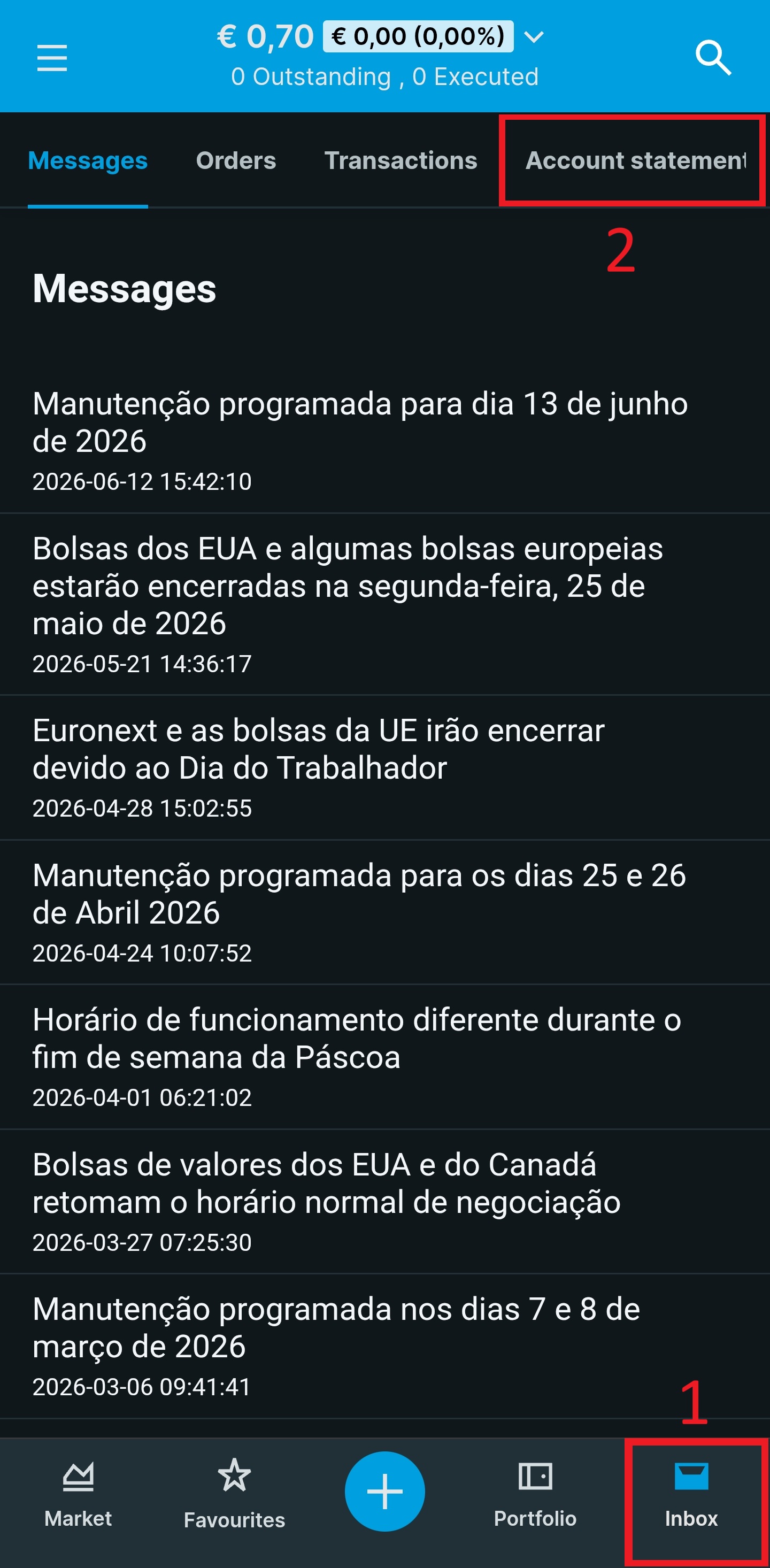
Go to Inbox > Account Statement
Open the Inbox (bottom-right) and select Account Statement. This is the correct file, not the Transactions tab, which only contains buy/sell data and misses dividends, fees, and interest.
- 2
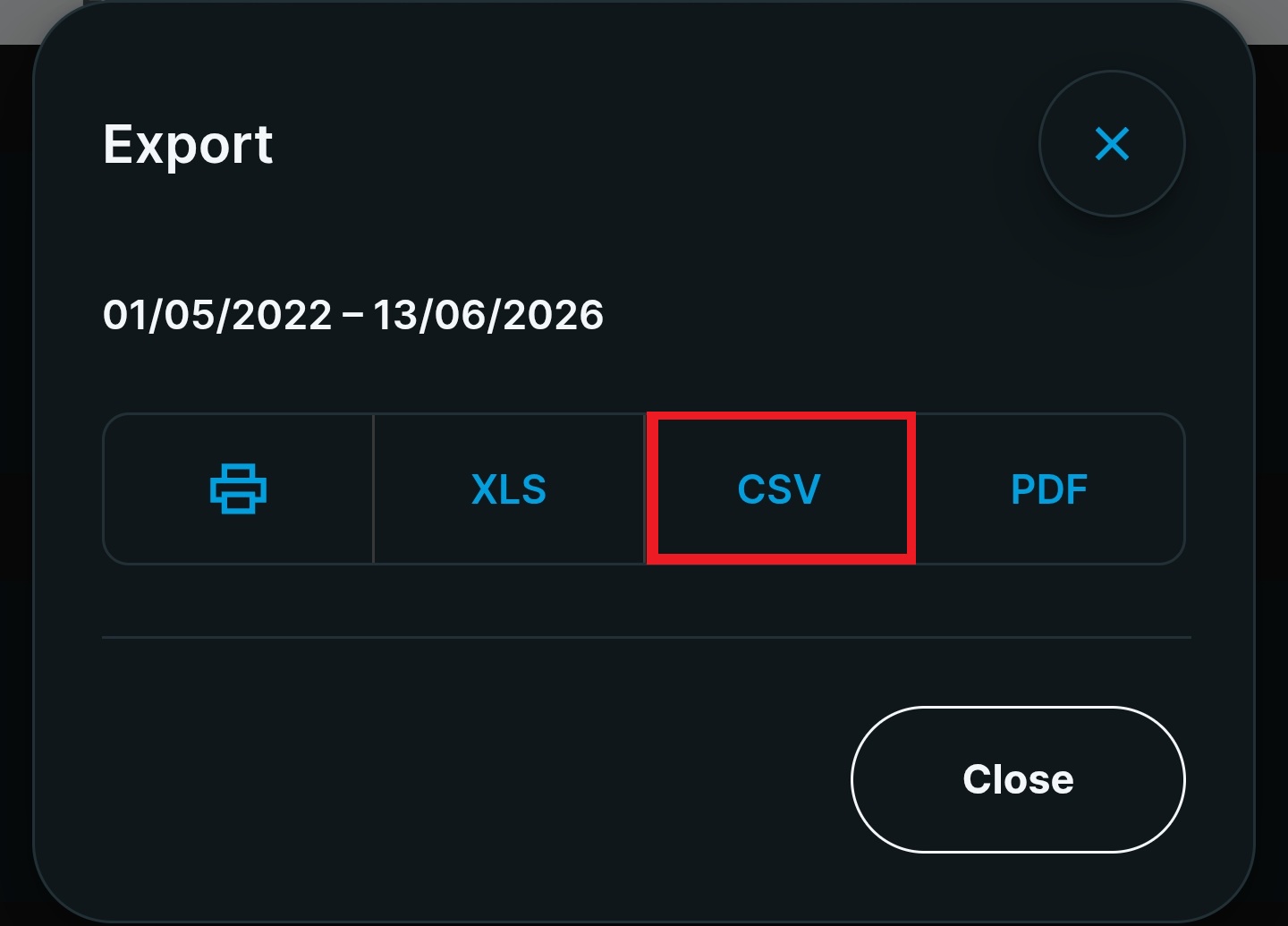
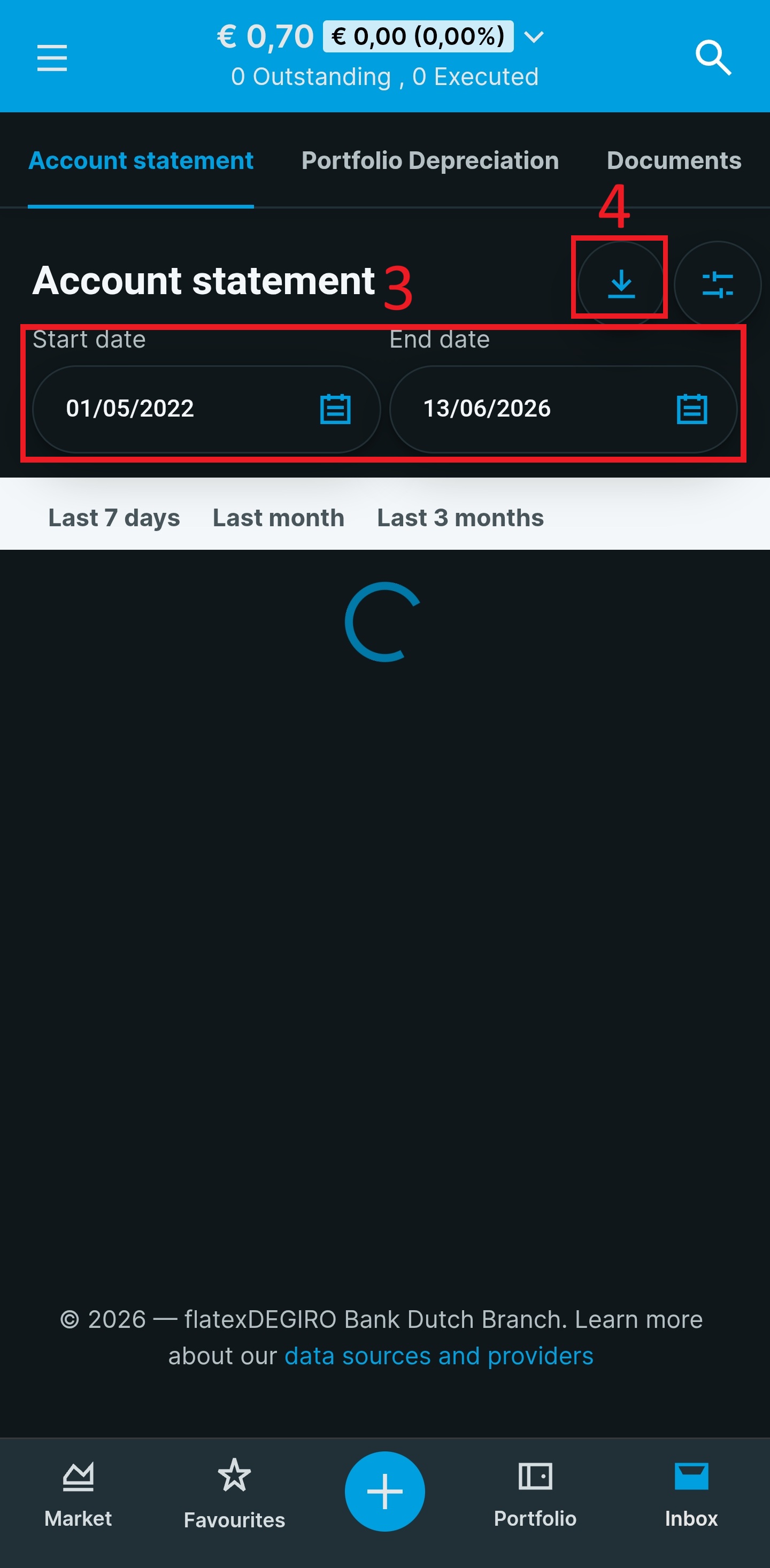
Select your date range and export as CSV
Pick the date range covering the transactions you want to import. Click Export. If you're unsure, select your full history. Oitava detects and ignores duplicates automatically, so overlapping imports are safe.
- 3
Upload in Oitava
Choose CSV, download the file, then use the Import button on the Transactions page to upload it.